







A practical guide to safe browsing, learn how to spot dangerous websites, protect your personal data, use browser security settings, and build habits that keep you safe online every day.
Introduction
The internet is an extraordinary resource, but it is also an environment where threats are real, constant, and increasingly sophisticated. The good news is that the vast majority of online dangers are avoidable with the right knowledge and a handful of consistent habits. You do not need to be a cybersecurity expert to browse safely, you just need to know what to look for and what to do. This post covers the most important safe browsing practices, how to recognise warning signs before they become problems, and the tools that make staying safe easier. By the end, you will have a clear, practical framework for protecting yourself every time you go online.
What Is Safe Browsing? (Simple Explanation)
Safe browsing is the practice of using the internet in ways that protect your personal information, your devices, and your accounts from harm. It combines technical tools, like browser security settings, antivirus software, and VPNs, with informed habits, like recognising suspicious links and verifying website authenticity before entering sensitive information. Safe browsing is not about being fearful of the internet; it is about being deliberately aware of the environment you are navigating.
Why It Matters
Online threats have never been more prevalent or more sophisticated. Phishing websites mimic real banks and government agencies with alarming accuracy. Malicious ads can install software on your device simply by being displayed on the page. Data breaches expose login credentials that are then used to access other accounts. The consequences, financial loss, identity theft, compromised accounts, and reputational damage, can be severe and long-lasting. The encouraging reality is that informed, consistent habits eliminate the vast majority of risk.
Key Concepts You Need to Know
Checking for HTTPS
Before entering any personal information, login credentials, payment details, contact information, always check that the website uses HTTPS. Look for the padlock icon in the address bar and confirm the URL begins with “https://” rather than “http://”. The HTTPS protocol encrypts data between your browser and the server, protecting it from interception. That said, as noted in our earlier posts, HTTPS confirms the connection is encrypted, not that the website itself is trustworthy. Always verify you are on the correct domain before proceeding.
Recognising Suspicious Links
Malicious links are one of the most common entry points for online harm. Warning signs include URLs that closely mimic legitimate ones with subtle misspellings (paypa1.com instead of paypal.com), links that use a long string of random characters, shortened URLs that obscure the true destination, and links that arrive unexpectedly in emails or messages urging immediate action. Before clicking any link, hover over it, most browsers display the full destination URL in the bottom corner of the screen.
Pop-Ups, Fake Alerts, and Scareware
Legitimate websites and operating systems do not display pop-up warnings telling you your device is infected and urging you to call a phone number or download software immediately. These are scareware tactics designed to panic users into taking hasty actions that install malware or hand over personal information. If you see such a message, close the tab or window immediately. If the pop-up prevents you from closing it, use your task manager to force-quit the browser.
Browser Security Settings
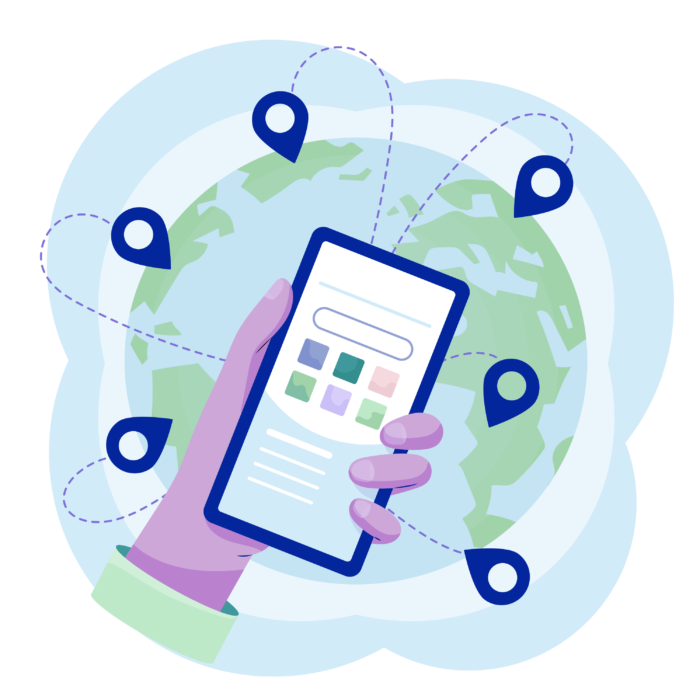
Every major browser includes built-in security features worth knowing about. These include safe browsing protection (which warns you before visiting known malicious sites), pop-up blockers, permission controls (managing which sites can access your camera, microphone, and location), and the ability to clear cookies and cached data. Take ten minutes to review your browser’s privacy and security settings, most people have never opened that menu.
VPNs, What They Do and Don’t Do
A VPN (Virtual Private Network) encrypts your internet connection and routes it through a server in a location of your choice, masking your IP address and making it harder for third parties to monitor your activity. VPNs are particularly useful on public Wi-Fi networks, in cafés, airports, and hotels, where your connection could otherwise be intercepted. However, a VPN is not a silver bullet: it does not protect you from phishing, malware, or weak passwords, and a poor-quality VPN provider may log and sell your data. Choose a reputable paid provider rather than a free one.
Managing Browser Permissions and Extensions
Websites routinely request access to your location, camera, microphone, and notifications. Grant these permissions only when they are genuinely necessary for the service you are using, and review your browser’s permission settings periodically to revoke access you no longer want to give. Similarly, browser extensions have significant access to your browsing activity, only install extensions from reputable sources, and remove any you no longer use or do not recognise.
Common Mistakes or Misconceptions
- “I will know if my device has been compromised.” Many types of malware, particularly spyware and some trojans, are designed to operate silently in the background. You may have no obvious symptoms while your data is being collected. Regular security scans and good prevention habits are essential.
- “Only suspicious websites are dangerous.” Legitimate, well-known websites can carry malicious advertisements (a technique called malvertising) served through compromised ad networks. Even reputable sites are occasionally used as unwitting vectors for malware.
- “A strong password protects me even on an insecure connection.” If you enter a password on a site that uses HTTP rather than HTTPS, or over an unsecured public Wi-Fi network without a VPN, the credentials can be intercepted before they even reach the server. Security requires multiple layers working together.
Practical Next Steps
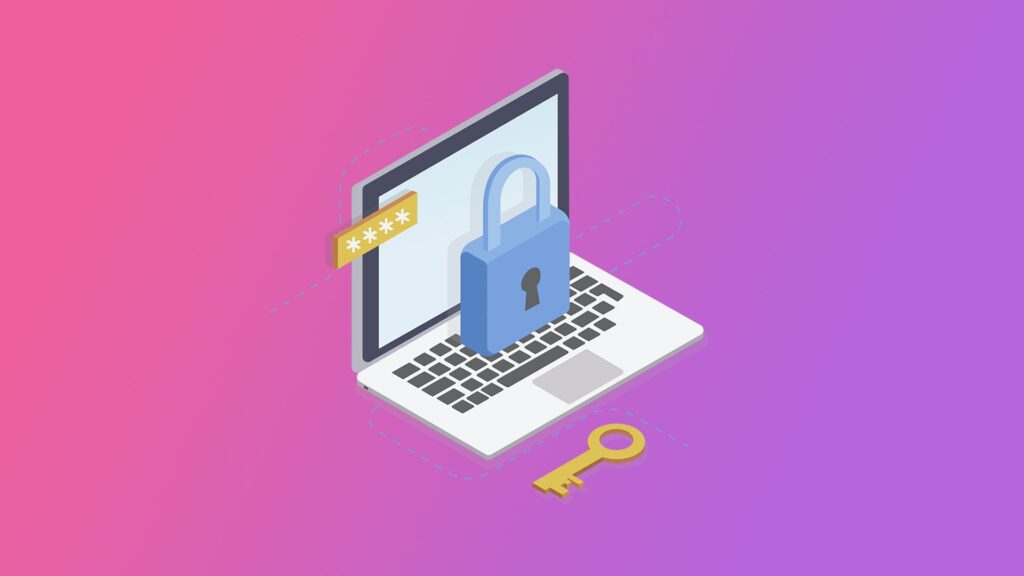
Build safer browsing habits starting today:
- Install a reputable ad blocker, uBlock Origin is free, open-source, and widely recommended. It blocks malicious ads and trackers, significantly reducing your exposure to malvertising and privacy violations.
- Review your browser’s security and privacy settings this week, check which sites have permission to access your location, camera, and microphone, and revoke anything that seems unnecessary or unexpected.
- Before entering personal information on any website, take five seconds to verify the domain name in the address bar, confirm it is exactly right, use HTTPS, and match the organisation you intend to use.
Key Takeaways
- Safe browsing combines technical tools with consistent, informed habits, neither alone is sufficient.
- Checking for HTTPS, inspecting links before clicking, and recognising fake alerts are three of the most impactful safe browsing practices.
- Browser security settings, VPNs, and ad blockers each add meaningful layers of protection when used correctly.
- Most online security failures are preventable, awareness and deliberate habits are your most powerful defences.
Related Reading
- Previous post: Search Engines, Browsers, and Online Tools
- Coming up next: Understanding Routers, Switches, and Modems
Call to Action: Subscribe for next week’s post as we move into March, starting with a practical breakdown of routers, switches, and modems, and what each one actually does in your home or office network.