


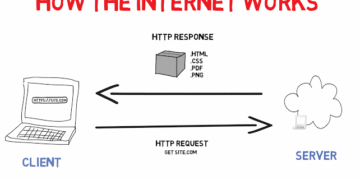





Ever wondered what actually happens when you type a web address and hit enter? This post breaks down the full journey, DNS, servers, browsers, and page loading, in plain language.
Introduction
You type a web address, press enter, and within seconds a fully designed page appears on your screen, complete with images, text, buttons, and videos. It feels instantaneous and almost magical. But behind that half-second experience is a remarkably intricate sequence of events involving your device, your internet connection, multiple servers around the world, and your browser working together at extraordinary speed. This post walks through every step of that journey, clearly, without jargon, so you understand exactly what is happening every time you load a page. By the end, you will never think of a website the same way again.
What Is a Website? (Simple Explanation)
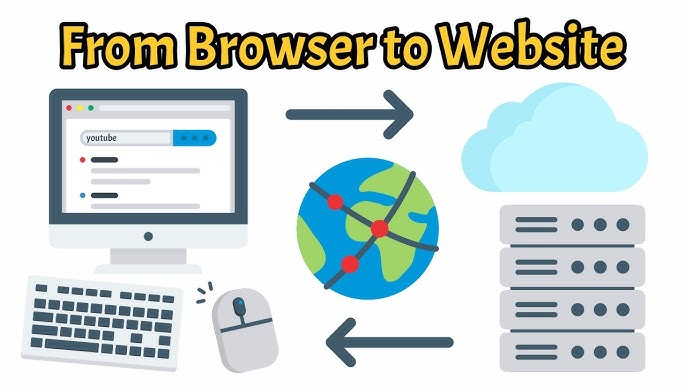
A website is a collection of files, HTML documents, CSS stylesheets, images, videos, and scripts, stored on a remote computer called a web server. When you visit a website, you are essentially asking that remote computer to send those files to your device, and your browser assembles and displays them as the page you see. The web address you type, known as a URL (Uniform Resource Locator), is the instruction that tells your browser exactly which files to request and where to find them.
Why It Matters
Understanding how websites load helps you make sense of why pages sometimes load slowly, what causes errors like “404 Not Found” or “503 Service Unavailable,” how web hosting and domains work, and why cybersecurity on the web matters so much. It is also foundational knowledge for anyone interested in web development, IT support, networking, or cybersecurity, fields where this process is referenced constantly.
Key Concepts You Need to Know
Step 1, You Type a URL
Everything starts when you type a web address, such as www.example.com, into your browser’s address bar and press enter. The URL contains three key parts: the protocol (https://), which defines how data will be transferred; the domain name (www.example.com), which is the human-readable address of the website; and sometimes a path (/about), which points to a specific page within the site.
Step 2, DNS Lookup
Your browser needs to translate the domain name into an IP address, the numerical address of the server where the website’s files are stored. It does this by contacting a DNS (Domain Name System) server, which acts like a phone book for the internet. Your device first checks its own local cache to see if it has looked up this address recently. If not, it contacts your ISP’s DNS server, which either knows the answer or queries further up the chain until the correct IP address is found and returned to your browser. This entire process typically takes milliseconds.
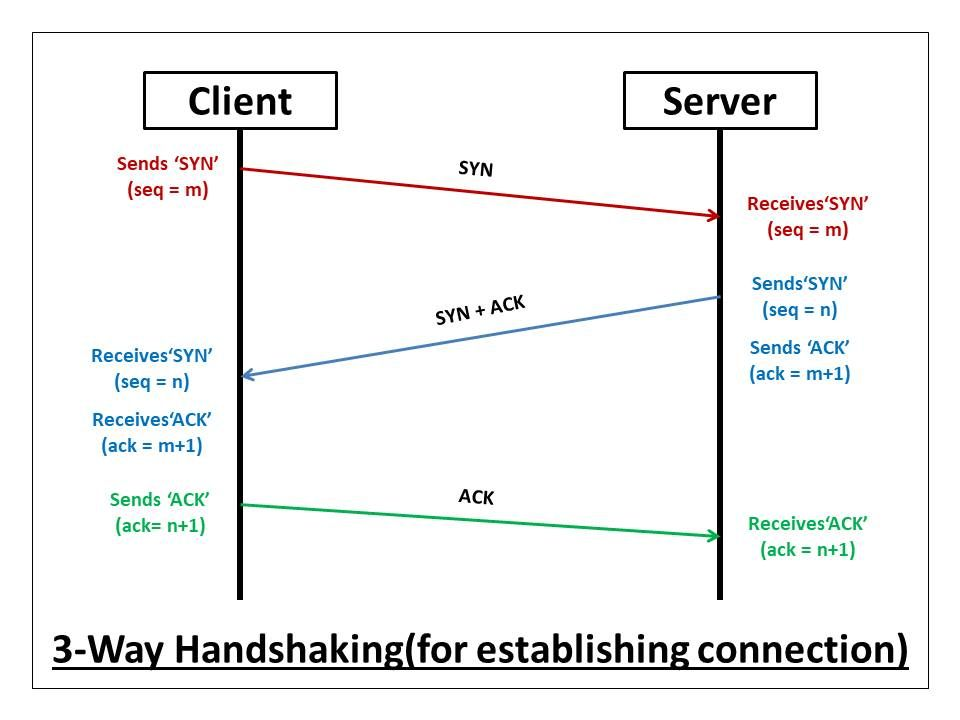
Step 3, Establishing a Connection
With the IP address in hand, your browser contacts the web server at that address and requests a connection. For secure websites (https://), this involves a TLS handshake, a rapid exchange of cryptographic keys that establishes an encrypted connection between your browser and the server, ensuring that data cannot be intercepted or tampered with in transit.
Step 4, Sending the HTTP Request
Once connected, your browser sends an HTTP (or HTTPS) request to the server asking for the page’s files. This request includes information about what you want (the specific page), what type of browser you are using, and what formats of content you can accept. Think of it as handing a waiter your order, specific, structured, and expecting a matching response.
Step 5, The Server Responds
The web server receives your request, processes it, and sends back a response. For a simple page, this might mean retrieving a pre-built HTML file and sending it directly. For a dynamic page, like a personalised newsfeed or a shopping cart, the server may query a database, run application logic, and assemble a custom response before sending it. The response includes a status code (200 means success; 404 means the page wasn’t found; 500 means there was a server error) along with the requested files.
Step 6, The Browser Renders the Page
Your browser receives the HTML file and begins reading it from top to bottom. As it encounters references to other resources, CSS stylesheets, JavaScript files, images, fonts, it sends additional requests to fetch those too. The CSS is applied to determine the visual layout. JavaScript is executed to add interactivity. Images are loaded and placed. The browser assembles all of these elements together and renders the final page you see on screen. This entire process, from pressing enter to a fully loaded page, often takes less than two seconds.
Step 7, Caching for Faster Future Visits
To speed up future visits, your browser stores copies of certain files, images, stylesheets, scripts, in a local cache. The next time you visit the same site, the browser can reuse those cached files instead of re-downloading them, making the page load noticeably faster. This is why clearing your browser cache sometimes fixes display issues, it forces the browser to fetch fresh versions of all files.
Common Mistakes or Misconceptions
- “The website lives in my browser.” Your browser displays the website, but the files actually live on a remote server, often thousands of kilometres away. The browser is the viewer, not the storage location.
- “https:// just means a website is trustworthy.” HTTPS means the connection between your browser and the server is encrypted, it does not mean the website itself is safe, legitimate, or honest. Scam websites can and do use HTTPS.
- “A slow website means slow internet.” Page load speed depends on many factors, the size of the page’s files, the distance to the server, the server’s processing power, and how efficiently the website is coded, not just your internet connection speed.
Practical Next Steps
Explore how websites load with these hands-on steps:
- Open your browser’s developer tools (press F12 or right-click and select “Inspect”) and go to the Network tab. Refresh a webpage and watch every request being made in real time, you will see each file being fetched, its size, and how long it took to load.
- Use the free tool at dnschecker.org to look up the DNS records for any domain, see the IP addresses that domain names resolve to around the world.
- Test any website’s performance at pagespeed.web.dev (Google PageSpeed Insights), it shows how fast a page loads and what factors are slowing it down.
Key Takeaways
- Visiting a website triggers a precise sequence: DNS lookup, server connection, HTTP request, server response, and browser rendering.
- DNS translates human-readable domain names into IP addresses that computers can use to locate the right server.
- HTTPS encrypts the connection between your browser and the server, protecting data in transit, but not guaranteeing the site itself is trustworthy.
- Browsers cache files locally to speed up repeat visits, which is why clearing the cache can resolve display problems.
Related Reading
- Previous post: How the Internet Works in Simple Terms
- Coming up next: Search Engines, Browsers, and Online Tools
Call to Action: Subscribe for next week’s post on search engines and browsers, how they work, what makes them different, and which online tools every tech-savvy user should know about.