







A step-by-step guide to diagnosing and fixing the most common network problems, from no internet connection to slow speeds and dropped Wi-Fi, using tools and techniques IT professionals rely on.
Introduction
Network problems are among the most frequent and frustrating issues in both home and workplace environments. A dropped connection, sluggish speeds, or a device that simply refuses to connect can grind productivity to a halt, and most people’s response is either to restart everything and hope for the best, or to call IT support immediately. While restarting is often the right first step, knowing how to systematically diagnose and resolve network issues is a skill that saves time, reduces frustration, and is highly valued in every IT role. This post walks through a structured troubleshooting approach, the most common network problems, the tools used to diagnose them, and the fixes that resolve the majority of everyday issues. By the end, you will have a reliable framework for tackling network problems confidently and methodically.
What Is Network Troubleshooting? (Simple Explanation)
Network troubleshooting is the systematic process of identifying, diagnosing, and resolving problems that affect network connectivity or performance. Rather than trying random fixes until something works, good troubleshooting follows a logical sequence, starting with the most basic possible cause and working toward more complex explanations. This approach, often called the OSI model layer approach in professional settings, means you check physical connections before software settings, and local issues before assuming the problem is with your ISP or a remote server.
Why It Matters
For IT professionals, network troubleshooting is a daily responsibility, and the ability to resolve issues quickly and methodically is one of the clearest demonstrations of practical competence. For everyone else, even a basic understanding of troubleshooting steps means fewer hours waiting for support, faster resolution of common problems, and a much clearer picture of when an issue is genuinely beyond your control. In an increasingly remote and connected world, network reliability is not a luxury, it is infrastructure.
Key Concepts You Need to Know
Step 1, Identify the Scope of the Problem
Before touching any settings or hardware, establish exactly what is and is not working. Is the problem affecting one device or all devices? Is it affecting all websites and services, or just one? Is it affecting wired connections, wireless connections, or both? Narrowing the scope immediately points you toward the right area, a single affected device suggests a device-level issue, while all devices being affected suggests a router, modem, or ISP problem.
Step 2, Check the Physical Layer First
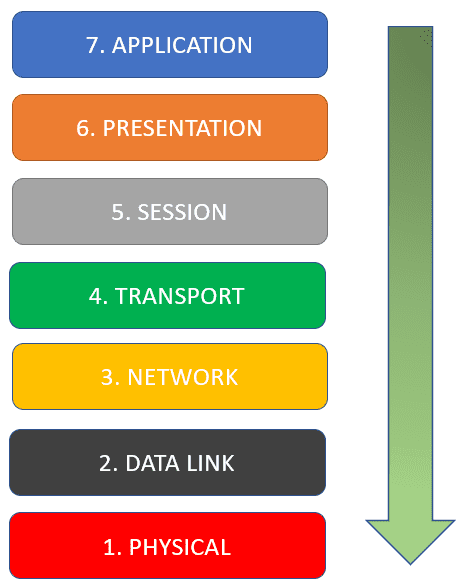
The most common cause of network problems is the simplest: a loose or unplugged cable, a device that has not been powered on, or indicator lights showing an error state. Check that all cables are firmly connected, that your modem and router are powered on and showing the expected indicator lights, and that no hardware has been physically moved or disconnected recently. It sounds obvious, but a significant proportion of network problems are resolved at this step.
Step 3, Restart Your Network Equipment
Power cycling your modem and router clears their memory, re-establishes connections with your ISP, and resolves a wide range of software and connectivity issues. Always restart in the correct order: power off your router first, then your modem. Wait thirty seconds, then power on the modem first and allow it to fully connect before powering on the router. Wait another sixty seconds before testing your connection. This sequence ensures each device initialises with the correct upstream connection already established.
Step 4, Check IP Address Configuration
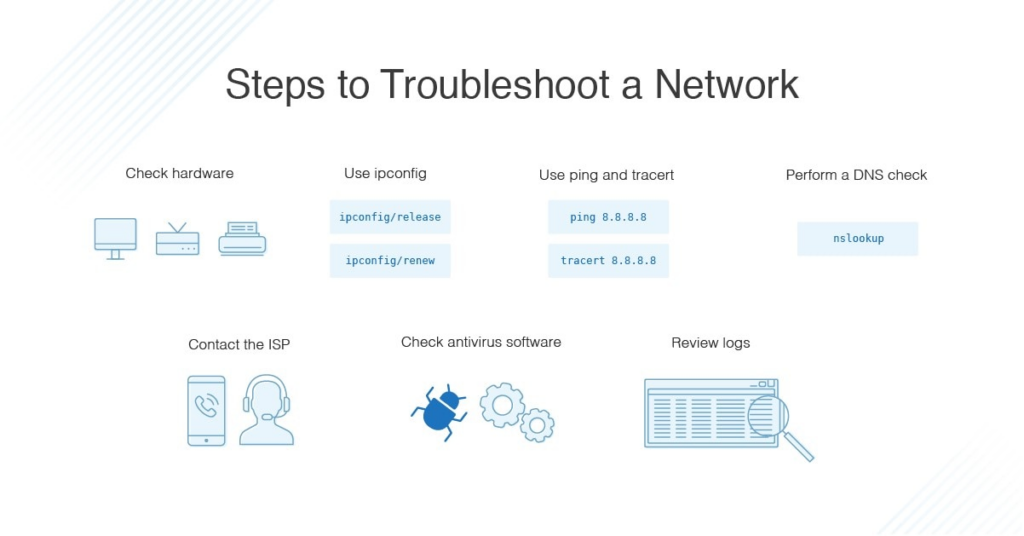
Every device on a network needs a valid IP address to communicate. If a device shows an IP address beginning with 169.254, it has failed to obtain an address from the router’s DHCP server, a self-assigned address that indicates a configuration problem. On Windows, open Command Prompt and type ipconfig to see your current IP address. On Mac or Linux, use ifconfig or ip addr. If the address is invalid, try releasing and renewing it (ipconfig /release followed by ipconfig /renew on Windows) or simply disconnect and reconnect to the network.
Step 5, Use Ping to Test Connectivity
Ping is one of the most fundamental network diagnostic tools. It sends a small packet of data to a specified address and measures whether a response is received and how long it takes. Open your command prompt or terminal and type ping 8.8.8.8 (Google’s public DNS server), if you receive replies, your internet connection is working at a basic level. If not, try pinging your router’s IP address (usually 192.168.1.1), if that works but 8.8.8.8 does not, the problem is between your router and your ISP. If even the router does not respond to a ping, the issue is local to your device or your LAN connection.
Step 6, Check DNS Resolution
Sometimes internet connectivity is functioning but websites still fail to load, a sign of a DNS problem rather than a connectivity problem. Test this by pinging a known IP address directly (ping 8.8.8.8), if that works but pinging a domain name (ping google.com) does not, DNS resolution is failing. You can resolve this by changing your DNS server to a public alternative: Google’s DNS (8.8.8.8 and 8.8.4.4) or Cloudflare’s DNS (1.1.1.1) are fast, reliable, and free to use.
Step 7, Investigate Speed and Performance Issues
If connectivity exists but performance is poor, the cause could be network congestion, interference, distance from the router, or a bandwidth-heavy application consuming most of your connection. Run a speed test at speedtest.net and compare the result to your subscribed plan. Check how many devices are connected and whether any are running large downloads or video streams. If on Wi-Fi, try a wired Ethernet connection, if the problem disappears, the issue is with wireless signal quality rather than the internet connection itself.
Common Mistakes or Misconceptions
- “If I can load one website, my internet is fine.” Some services may be reachable while others are not, due to routing issues, DNS problems, or outages at specific servers. Always test multiple sites and services before concluding connectivity is fully restored.
- “The problem must be with my ISP.” Most network issues are local, within the home or office network, rather than with the ISP. Work through local diagnostics systematically before assuming the ISP is at fault. Most ISPs provide an outage checker on their website or app that you can consult quickly.
- “Troubleshooting is only for IT professionals.” The steps in this post require no special tools beyond a command prompt, which is available on every operating system. Methodical troubleshooting is a learnable skill, not an expert-only discipline.
Practical Next Steps
Build your troubleshooting skills with these practical exercises:
- Open Command Prompt (Windows) or Terminal (Mac/Linux) right now and run ipconfig (Windows) or ifconfig (Mac/Linux), familiarise yourself with what your current IP address, subnet mask, and default gateway look like. These are the values you will check first in any connectivity problem.
- Practice the ping command, ping your router (192.168.1.1), ping Google’s DNS (8.8.8.8), and ping a domain (google.com). Note the response times and what a successful vs failed ping looks like, so you recognise each instantly when troubleshooting under pressure.
- Bookmark your ISP’s outage status page and your router admin panel address, having these ready before a problem occurs means you can check them immediately rather than searching under stress.
Key Takeaways
- Effective network troubleshooting follows a systematic sequence, from physical checks, through IP configuration, to connectivity testing and DNS diagnosis.
- Scope identification is the most important first step, determining whether a problem affects one device or all devices immediately narrows the likely cause.
- Ping and ipconfig/ifconfig are the two most fundamental command-line tools for network diagnosis, fast, built-in, and effective across almost every common scenario.
- Most everyday network issues are resolved by checking physical connections, power cycling equipment in the correct order, or addressing IP and DNS configuration problems.
Related Reading
- Previous post: LAN vs WAN: What’s the Difference?
- Coming up next: How to Create Strong Password Habits
Call to Action: Subscribe for next week’s post as we move into April, starting with a deep dive into strong password habits, the psychology of why people choose weak passwords, and the tools and strategies that make account security effortless.